
World Configuration
Configure world settings for your Hytale server. Manage world identity, generation, chunk configuration, gameplay settings, client effects, time & weather, death mechanics, and entity spawning.
The Worlds tab allows you to configure detailed settings for each world on your Hytale server. You can customize world generation, gameplay mechanics, visual effects, and performance settings to create the exact experience you want.
Accessing world configuration
To configure world settings:
- Navigate to your server's details page (click the three-dot menu on a server card and select "View Details").
- Click the "Worlds" tab in the navigation tabs.
- Select a world to configure (e.g., click the "default" button).
The Worlds tab displays all configurable world settings organized into logical sections.
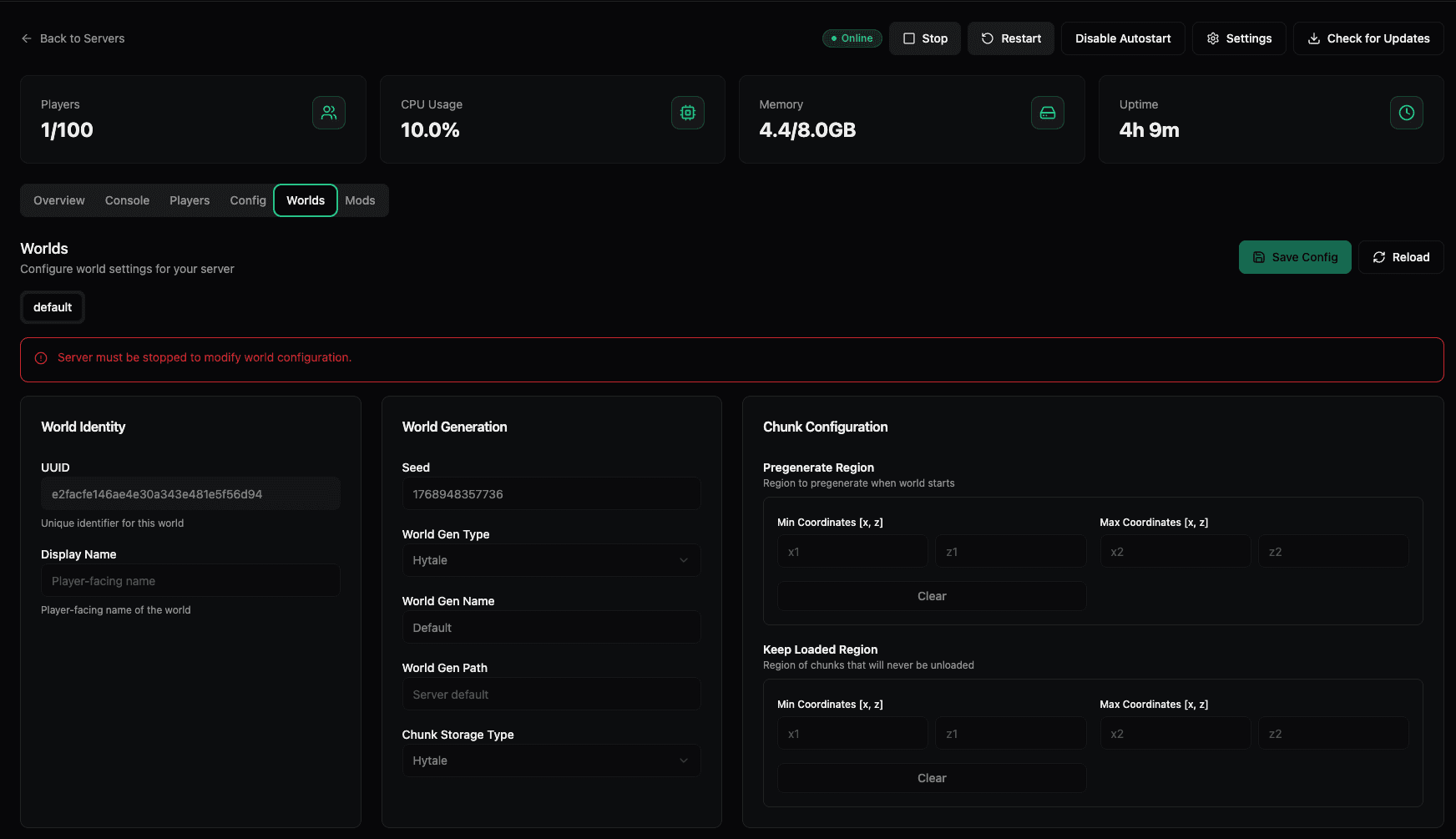
Important: Server must be stopped
⚠️ Warning: The server must be stopped to modify world configuration. You will not be able to edit the world settings while the server is running.
Stop your server before making any world configuration changes, then start it again after saving your configuration.
World configuration overview
The world configuration is divided into two main views:
Basic world settings
The first view covers world identity, generation, and chunk configuration:
Detailed world settings
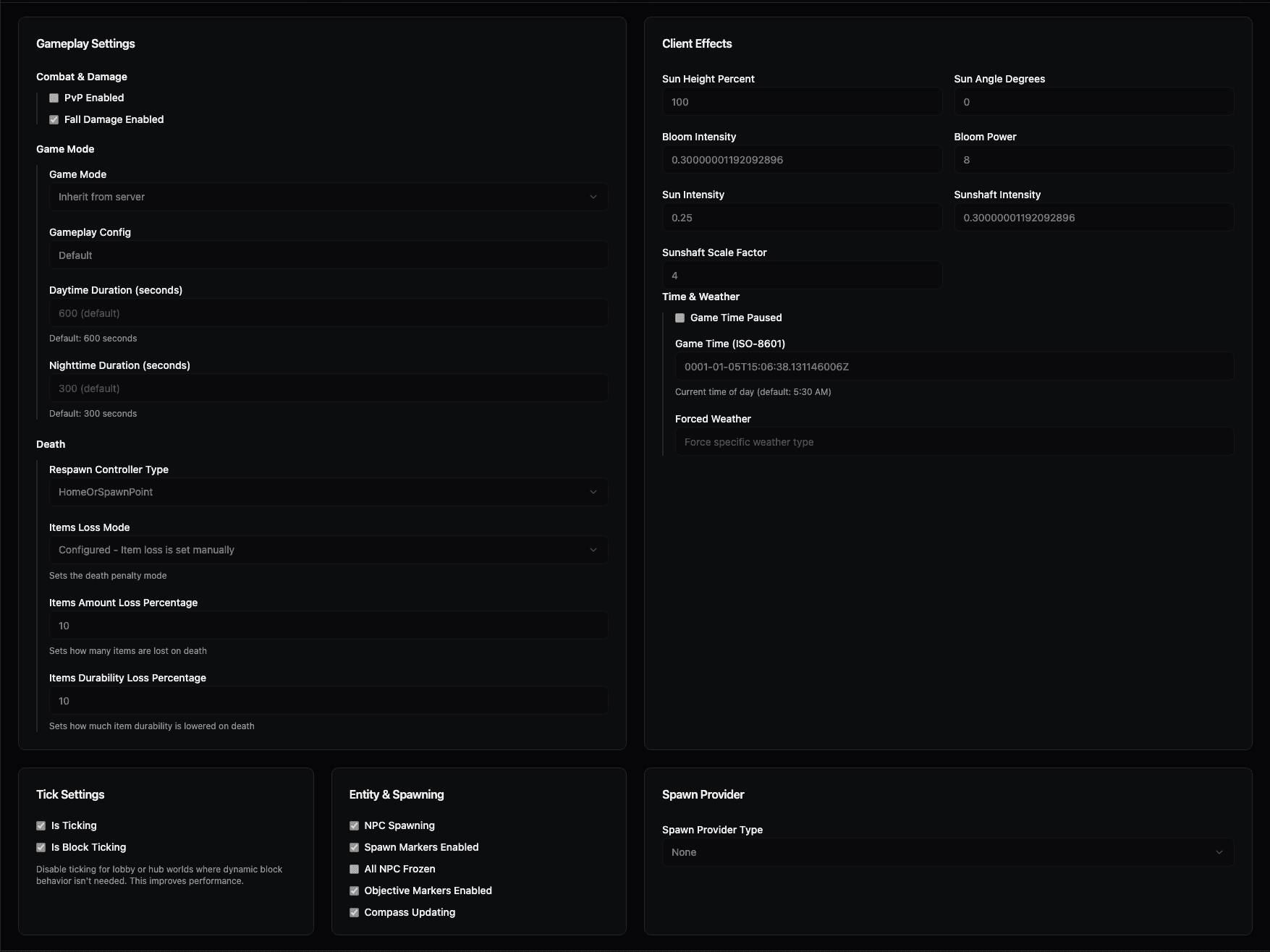
The second view covers gameplay mechanics, visual effects, and advanced options:
Basic world settings
World Identity
Settings that identify and name your world:
- UUID — Unique identifier for this world (read-only, e.g.,
e2facfe146ae4e30a343e481e5f56d94) - Display Name — Player-facing name of the world (placeholder: "Player-facing name")
The UUID is automatically generated and cannot be changed. The Display Name is what players see when interacting with the world.
World Generation
Configuration for how the world is generated:
- Seed — Numerical seed value used for world generation (read-only, e.g.,
1768948357736) - World Gen Type — Type of world generation system (dropdown, e.g.,
Hytale) - World Gen Name — Name of the world generation preset (e.g.,
Default) - World Gen Path — Path to world generation configuration (read-only, e.g.,
Server default) - Chunk Storage Type — How chunks are stored (dropdown, e.g.,
Hytale)
These settings control the fundamental structure and generation of your world. The seed determines the world's layout and cannot be changed after world creation.
Chunk Configuration
Settings for chunk loading and pregeneration:
Pregenerate Region
Region to pregenerate when the world starts. This helps reduce lag when players first explore areas.
- Min Coordinates [x, z] — Minimum coordinates for the pregeneration region
- x1 — Minimum X coordinate
- z1 — Minimum Z coordinate
- Max Coordinates [x, z] — Maximum coordinates for the pregeneration region
- x2 — Maximum X coordinate
- z2 — Maximum Z coordinate
- Clear — Button to clear the pregeneration region settings
Pregenerating chunks ensures they're ready when players arrive, improving performance.
Keep Loaded Region
Region of chunks that will never be unloaded, keeping them in memory at all times.
- Min Coordinates [x, z] — Minimum coordinates for the always-loaded region
- x1 — Minimum X coordinate
- z1 — Minimum Z coordinate
- Max Coordinates [x, z] — Maximum coordinates for the always-loaded region
- x2 — Maximum X coordinate
- z2 — Maximum Z coordinate
- Clear — Button to clear the keep-loaded region settings
Use this for important areas like spawn points or player hubs that should always be active.
Detailed world settings
Gameplay Settings
Core gameplay mechanics and rules:
- PvP Enabled — Checkbox to enable player-versus-player combat
- Fall Damage Enabled — Checkbox to enable fall damage (checked by default)
- Game Mode — Default game mode for the world (dropdown, e.g., "Inherit from server")
- Gameplay Config — Gameplay configuration preset (dropdown, e.g.,
Default) - Daytime Duration (seconds) — How long day lasts (default:
600 seconds) - Nighttime Duration (seconds) — How long night lasts (default:
300 seconds)
These settings control fundamental gameplay mechanics and the day/night cycle.
Client Effects
Visual and lighting effects that affect how the world appears to players:
- Sun Height Percent — Height of the sun in the sky (e.g.,
100) - Sun Angle Degrees — Angle of the sun (e.g.,
0) - Bloom Intensity — Intensity of bloom effect (e.g.,
0.30000001192092896) - Bloom Power — Power of bloom effect (e.g.,
8) - Sun Intensity — Intensity of sunlight (e.g.,
0.25) - Sunshaft Intensity — Intensity of sunshaft/light rays (e.g.,
0.30000001192092896) - Sunshaft Scale Factor — Scale factor for sunshafts (e.g.,
4)
These settings control the visual appearance and atmosphere of your world.
Time & Weather
Time progression and weather control:
- Game Time Paused — Checkbox to pause game time progression
- Game Time (ISO-8601) — Current time of day in ISO-8601 format (e.g.,
0001-01-05T15:06:38.131146006Z, default: 5:30 AM) - Forced Weather — Force a specific weather type (empty by default, can be set to specific weather)
Control whether time progresses and set specific times or weather conditions for your world.
Death
Configuration for death mechanics and respawn behavior:
- Respawn Controller Type — How players respawn after death (dropdown, e.g.,
HomeOrSpawnPoint) - Items Loss Mode — Death penalty mode (dropdown, e.g., "Configured - Item loss is set manually")
- Items Amount Loss Percentage — Percentage of items lost on death (e.g.,
10) - Items Durability Loss Percentage — Percentage of item durability lost on death (e.g.,
10)
Configure how death is handled, including what happens to player items and where players respawn.
Tick Settings
Performance settings for world ticking:
- Is Ticking — Checkbox to enable world ticking (checked by default)
- Is Block Ticking — Checkbox to enable block ticking (checked by default)
- Helper text: "Disable ticking for lobby or hub worlds where dynamic block behavior isn't needed. This improves performance."
Disable ticking for static worlds like lobbies or hubs to improve performance.
Entity & Spawning
Configuration for NPCs, spawn markers, and objectives:
- NPC Spawning — Checkbox to enable NPC spawning (checked by default)
- Spawn Markers Enabled — Checkbox to enable spawn markers (checked by default)
- All NPC Frozen — Checkbox to freeze all NPCs (unchecked by default)
- Objective Markers Enabled — Checkbox to enable objective markers (checked by default)
- Compass Updating — Checkbox to enable compass updates (checked by default)
Control NPC behavior, spawn points, and navigation aids.
Spawn Provider
Configuration for player spawn points:
- Spawn Provider Type — Type of spawn provider system (dropdown, e.g.,
None)
Configure where and how players spawn when entering the world.
Saving and reloading configuration
Save Config
Click the Save Config button (green button with floppy disk icon) to save all your world configuration changes. Make sure to save after making any modifications.
Reload
Click the Reload button (refresh icon) to reload the world configuration from disk, discarding any unsaved changes.
Best practices
- Stop server first — Always stop the server before modifying world configuration
- Test changes — After making significant changes, test your world to ensure it behaves as expected
- Backup worlds — Create backups before making major world configuration changes
- Pregenerate important areas — Use chunk pregeneration for spawn areas and player hubs
- Disable ticking for lobbies — Turn off block ticking for static worlds to improve performance
- Document custom settings — Keep notes of custom configurations for reference
Configuration tips
- Performance optimization — Disable unnecessary features (like block ticking) for lobby/hub worlds
- Player experience — Adjust daytime/nighttime duration to match your server's theme
- Visual atmosphere — Fine-tune client effects to create the desired mood
- Death mechanics — Balance item loss percentages to match your server's difficulty
- Spawn control — Configure spawn providers to control where players enter the world
Related features
World configuration works in conjunction with:
- Server Configuration — Global server settings that affect all worlds
- Backups — World data is included in server backups
- Console — Some world settings can be managed via console commands
For more information about specific world settings, refer to the Hytale server documentation or consult the server console for detailed error messages.
Server Configuration
Configure your Hytale server settings through the web interface. Manage basic settings, game settings, world configuration, storage options, and advanced settings.
Mod Management
Upload, view, and delete mods for your Hytale server directly through the web interface. Supports .zip and .jar mod files.