
Player Management
View and manage players on your Hytale server. See who's online, manage permissions, and perform player actions like kick, ban, whitelist, and admin.
The Players tab provides a comprehensive interface for managing players on your Hytale server. View who's currently online, manage player permissions, and perform administrative actions directly from the web interface.
Accessing the Players tab
To view and manage players:
- Navigate to your server's details page (click the three-dot menu on a server card and select "View Details").
- Click the "Players" tab in the navigation tabs.
The Players tab displays all currently online players and provides tools to manage them.
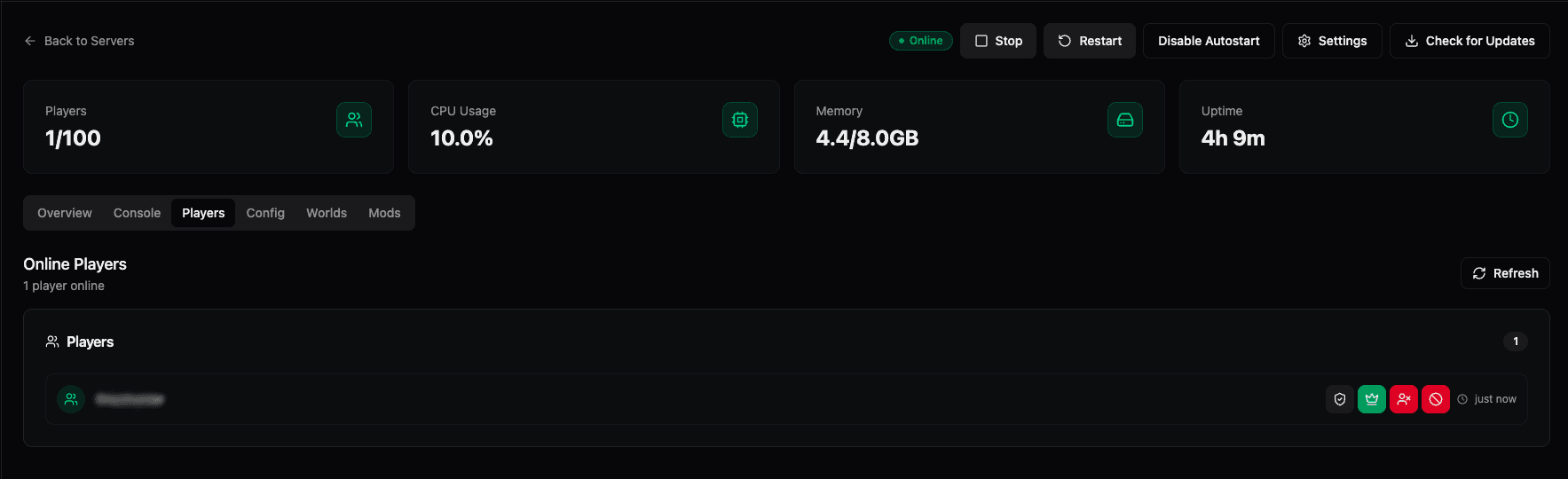
Player list interface
The Players tab shows:
Online players section
The main content area displays:
- Section header — "Online Players" with the current player count (e.g., "1 player online")
- Refresh button — Click the circular arrow icon to manually refresh the player list
- Player cards — Each online player is displayed in a card showing:
- Player username — The player's in-game name
- Connection time — When the player connected (e.g., "just now")
- Action buttons — Quick access to player management actions
The player list automatically updates to reflect players joining or leaving the server.
Player actions
For each online player, you have access to four management actions:

Whitelist
The Whitelist button (shield with checkmark icon) allows you to:
- Add player to whitelist — Grant the player permission to join the server even when the server is whitelist-only
- Remove from whitelist — Remove whitelist privileges if needed
Whitelisting is useful for maintaining a controlled player base and ensuring only approved players can access your server.
Admin
The Admin button (crown icon) allows you to:
- Grant admin privileges — Give the player operator/admin permissions on the server
- Revoke admin privileges — Remove admin status if needed
Admin players have access to server commands and can help manage the server. Use this action carefully, as admins have significant control over the server.
Kick
The Kick button (person with asterisk icon) allows you to:
- Disconnect the player — Immediately remove the player from the server
Kicking a player disconnects them but does not prevent them from rejoining. This is useful for temporarily removing problematic players or testing server behavior.
Ban
The Ban button (prohibition symbol icon) allows you to:
- Permanently ban the player — Prevent the player from joining the server
Banning a player adds them to the server's banlist and prevents them from connecting. This is a more severe action than kicking and should be used for serious rule violations.
Managing players
Viewing player information
The Players tab shows:
- Current online players — Real-time list of connected players
- Connection status — When each player connected
- Player count — Total online players out of maximum capacity
Refreshing the player list
Click the Refresh button (circular arrow icon) in the "Online Players" section header to manually update the player list. The list also updates automatically as players join or leave.
Performing actions
To perform an action on a player:
- Locate the player in the online players list
- Click the appropriate action button (Whitelist, Admin, Kick, or Ban)
- Confirm the action if prompted
Actions are executed immediately and may require confirmation for destructive operations like banning.
Player management best practices
- Monitor regularly — Check the Players tab regularly to see who's on your server
- Use appropriate actions — Kick for temporary issues, ban for serious violations
- Whitelist trusted players — Use whitelisting to maintain a controlled community
- Grant admin carefully — Only give admin privileges to trusted players
- Document actions — Keep track of bans and admin grants for server management
Related features
The Players tab works in conjunction with:
- Console — Execute player management commands via
/kick,/ban,/op, etc. - Server settings — Configure whitelist/banlist settings globally
- Backups — Player data is included in server backups
For more advanced player management, you can also use console commands or server configuration files.
Server Console
Access and interact with your server's console in real-time. View logs, execute commands, and monitor server activity through the web interface.
Server Configuration
Configure your Hytale server settings through the web interface. Manage basic settings, game settings, world configuration, storage options, and advanced settings.