
Server Console
Access and interact with your server's console in real-time. View logs, execute commands, and monitor server activity through the web interface.
The Server Console provides real-time access to your Hytale server's output and allows you to execute commands directly from the Hypanel web interface. This is your primary tool for monitoring server activity, debugging issues, and managing your server through commands.
Accessing the console
You can access the server console in two ways:
- From the Server Overview page: Click the Console tab in the navigation tabs.
- From the server dropdown menu: Click the three-dot menu (⋮) on any server card and select Console.
The console opens showing the current server's log output and command interface.
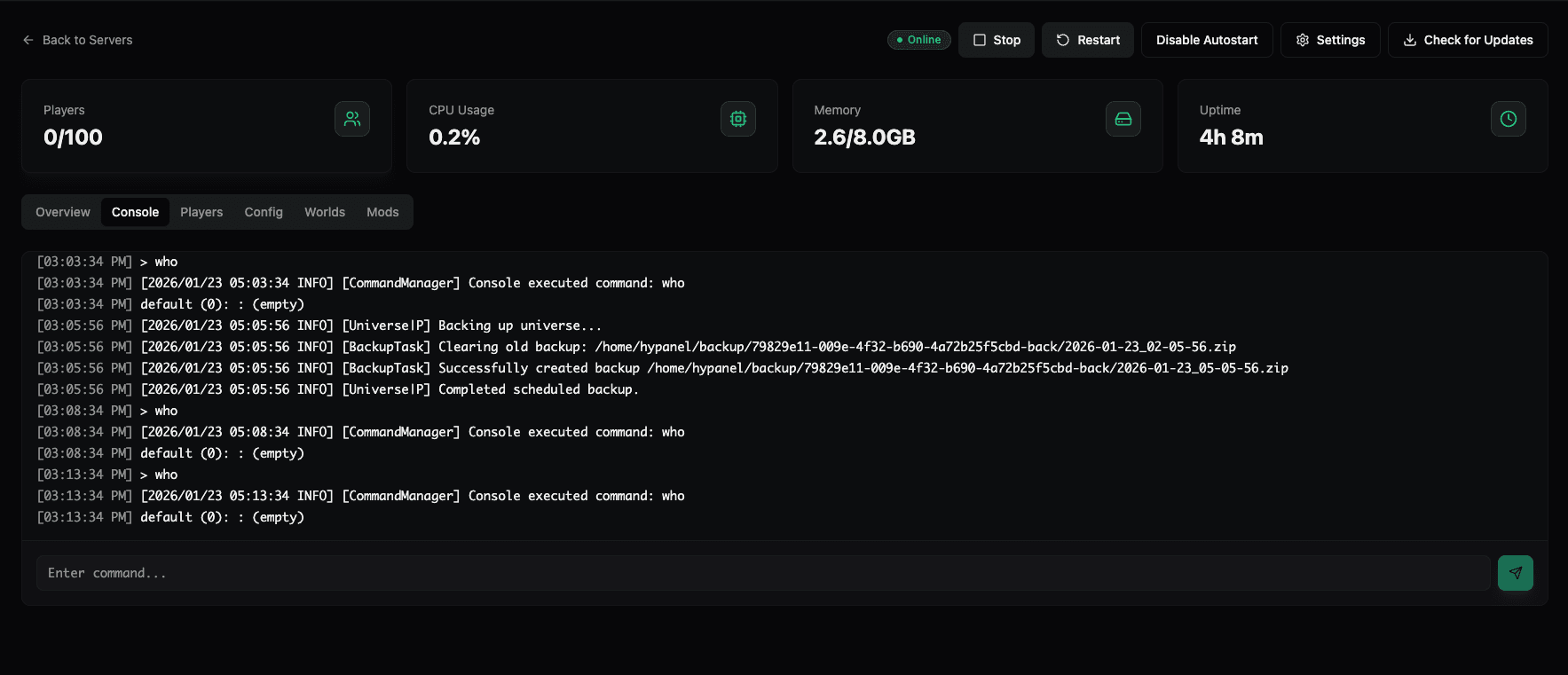
Console interface
The console page displays:
Console output
The main console area displays:
- Timestamped log entries — Each log entry shows the time (e.g.,
[03:03:34 PM]) and a full timestamp (e.g.,[2026/01/23 05:03:34 INFO]) - Log levels — Messages are tagged with levels like
[INFO],[WARNING],[ERROR] - Command execution — Commands you execute are shown with a
>prefix (e.g.,> who) - Command results — Output from executed commands appears below the command
- Server operations — Automatic operations like backups are logged:
[UniverseIP] Backing up universe...[BackupTask] Successfully created backup...[UniverseIP] Completed scheduled backup.
The console automatically scrolls to show the latest entries, keeping you informed of current server activity.
Executing commands
To execute a command on your server:
- Locate the command input field at the bottom of the console area (labeled "Enter command...").
- Type your command (e.g.,
/who,/op player,/kick player,/save-all). - Click the send button (green paper airplane icon) or press Enter.
The command is sent to the server, and you'll see:
- Your command displayed with a
>prefix - The command execution confirmation (e.g.,
[CommandManager] Console executed command: who) - The command's output or result
Example commands
Common Hytale server commands you can execute:
/who— List currently connected players/op <player>— Grant operator privileges to a player/kick <player>— Disconnect a player from the server/ban <player>— Ban a player from the server/save-all— Save all world data/stop— Stop the server/auth login device— Authenticate the server (first-time setup)/auth persistence Encrypted— Enable encrypted credential storage
Real-time monitoring
The console provides real-time monitoring of:
- Server startup and shutdown — See when the server starts or stops
- Player connections — Monitor when players join or leave
- Backup operations — Track automatic and manual backup progress
- Errors and warnings — Identify issues as they occur
- Command execution — Verify commands are executed correctly
- Server events — View all server activity in chronological order
Console features
- Real-time updates — Logs appear immediately as events occur
- Auto-scroll — Console automatically scrolls to show the latest entries
- Command history — Previous commands are visible in the console output
- Timestamped entries — Every log entry includes precise timestamps
- WebSocket connection — Console uses WebSocket for real-time communication with the server
Use cases
The console is useful for:
- Debugging — Identify and troubleshoot server issues
- Monitoring — Watch server activity in real-time
- Player management — Execute commands to manage players
- Server administration — Run administrative commands without SSH access
- Backup verification — Confirm backups are running successfully
- Performance monitoring — Observe server behavior and resource usage
Tips
- Keep the console open while troubleshooting to catch errors as they occur
- Use command shortcuts — Many server commands have shorter aliases
- Monitor during startup — Watch the console when starting the server to catch initialization issues
- Check logs regularly — Review console output periodically to identify patterns or issues
The console is an essential tool for managing your Hytale server effectively through Hypanel's web interface.
Server Overview
Access and navigate the server details page to view statistics, manage server actions, and configure autostart. Learn how to use the server overview interface.
Player Management
View and manage players on your Hytale server. See who's online, manage permissions, and perform player actions like kick, ban, whitelist, and admin.