
Mod Management
Upload, view, and delete mods for your Hytale server directly through the web interface. Supports .zip and .jar mod files.
The Mods tab provides a convenient way to manage mods for your Hytale server. You can upload mods directly through your browser, view all installed mods, and delete them as needed—all without needing to access the server's file system directly.
Accessing the Mods tab
To manage mods for your server:
- Navigate to your server's details page (click the three-dot menu on a server card and select "View Details").
- Click the "Mods" tab in the navigation tabs.
The Mods tab displays all mods currently installed on your server and provides tools to manage them.
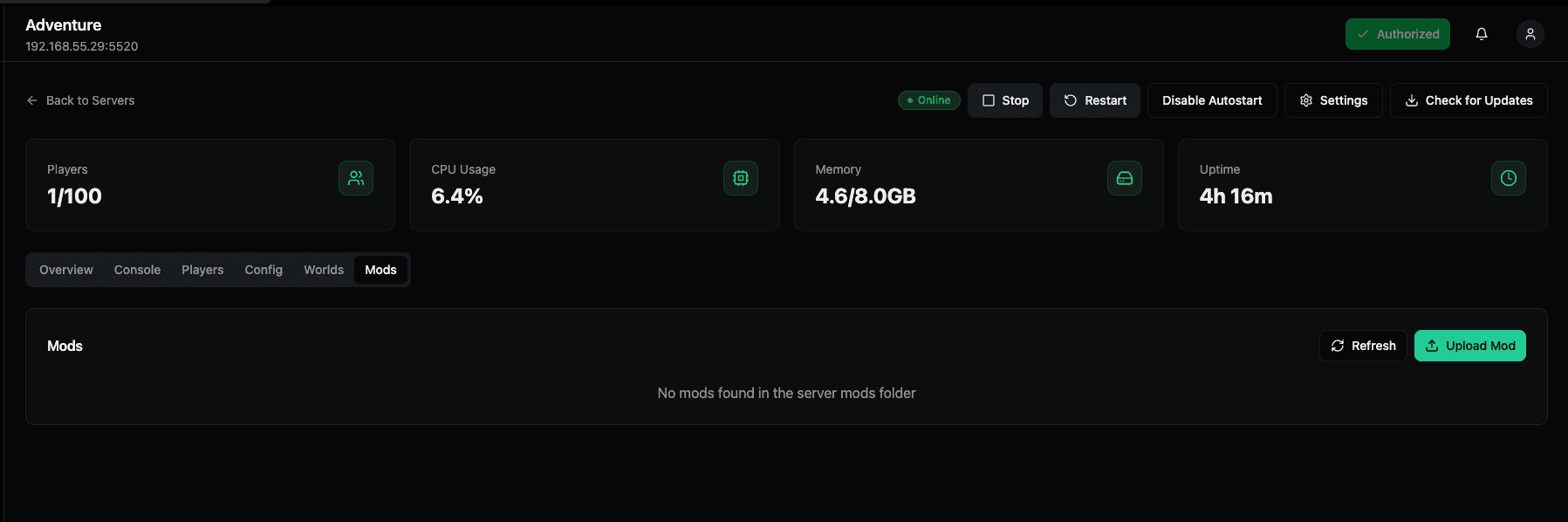
Mod list interface
The Mods tab shows:
- Mods heading — Section title for the mod management area
- Refresh button — Click the circular arrow icon to manually refresh the mod list
- Upload Mod button — Green button with upward arrow icon to upload new mods
- Mod list — Displays all mods currently in the server's mods folder
If no mods are installed, you'll see a message: "No mods found in the server mods folder".
Uploading mods
You can upload mods directly to your server through the web interface:
- Click the "Upload Mod" button (green button with upward arrow icon).
- Select a mod file from your computer.
- Wait for the upload to complete.
Supported file types
Mods can be uploaded in either of these formats:
.zip— Compressed mod files.jar— Java archive mod files
Both formats are supported, so you can upload mods in whichever format they're distributed in.
Upload process
- The mod file is uploaded directly to the server's mods folder
- Upload progress is shown during the transfer
- Once uploaded, the mod appears in the mod list
- The server may need to be restarted for some mods to take effect
Viewing installed mods
All mods installed on your server are displayed in the mod list. Each mod shows:
- Mod filename — The name of the mod file (e.g.,
example-mod.jarorcustom-mod.zip) - File information — Details about the mod file
The mod list automatically updates when you upload or delete mods. Use the Refresh button to manually update the list if needed.
Deleting mods
To remove a mod from your server:
- Locate the mod in the mod list.
- Click the delete action for that mod (typically a delete icon or button).
- Confirm the deletion if prompted.
The mod file is permanently removed from the server's mods folder. Make sure you want to delete the mod, as this action cannot be undone.
Mod management workflow
Adding a new mod
- Obtain the mod file (
.zipor.jarformat) - Navigate to the Mods tab on your server
- Click Upload Mod
- Select the mod file from your computer
- Wait for upload to complete
- Restart the server if required for the mod to load
Removing a mod
- Navigate to the Mods tab on your server
- Locate the mod you want to remove
- Click the delete action for that mod
- Confirm the deletion
- Restart the server if the mod was active
Refreshing the mod list
If mods are added or removed outside of the web interface (e.g., via SSH or file system access), click the Refresh button to update the displayed mod list.
Best practices
- Test mods first — Test mods on a development server before deploying to production
- Backup before adding mods — Create a server backup before adding new mods
- Check compatibility — Ensure mods are compatible with your server version
- Restart after changes — Restart the server after uploading or deleting mods to ensure changes take effect
- Monitor server logs — Check the console for any errors related to mods
- Keep mods updated — Update mods when new versions are released for compatibility
Troubleshooting
Mod not appearing
- Click the Refresh button to update the mod list
- Verify the file was uploaded successfully
- Check that the file is in
.zipor.jarformat - Ensure the file is in the server's mods folder
Mod not working
- Restart the server after uploading the mod
- Check the console for error messages
- Verify the mod is compatible with your server version
- Ensure the mod file is not corrupted
Upload failed
- Check your internet connection
- Verify the file size is within limits
- Ensure the file is a valid
.zipor.jarfile - Try uploading again
Related features
Mod management works in conjunction with:
- Server Console — View mod-related errors and messages
- Backups — Mod files are included in server backups
- Server Settings — Some mod settings may be configurable through server settings
For more information about specific mods or troubleshooting mod issues, refer to the mod's documentation or check the server console for detailed error messages.
World Configuration
Configure world settings for your Hytale server. Manage world identity, generation, chunk configuration, gameplay settings, client effects, time & weather, death mechanics, and entity spawning.
Console Page
Access a dedicated full-screen console view for monitoring and managing your servers. Switch between servers seamlessly to view console output and execute commands.