
Players Page
View and manage all players across all your Hytale servers from a single global interface. Search players, view their status, and perform management actions.
The Players page provides a centralized view of all players currently online across all your Hytale servers. This global interface allows you to monitor player activity, search for specific players, and manage players from any server without navigating to individual server pages.
Accessing the Players page
To open the Players page:
- Navigate to the main Hypanel interface.
- Click "Players" in the left sidebar navigation menu.
The Players page opens, displaying all online players across all your servers.
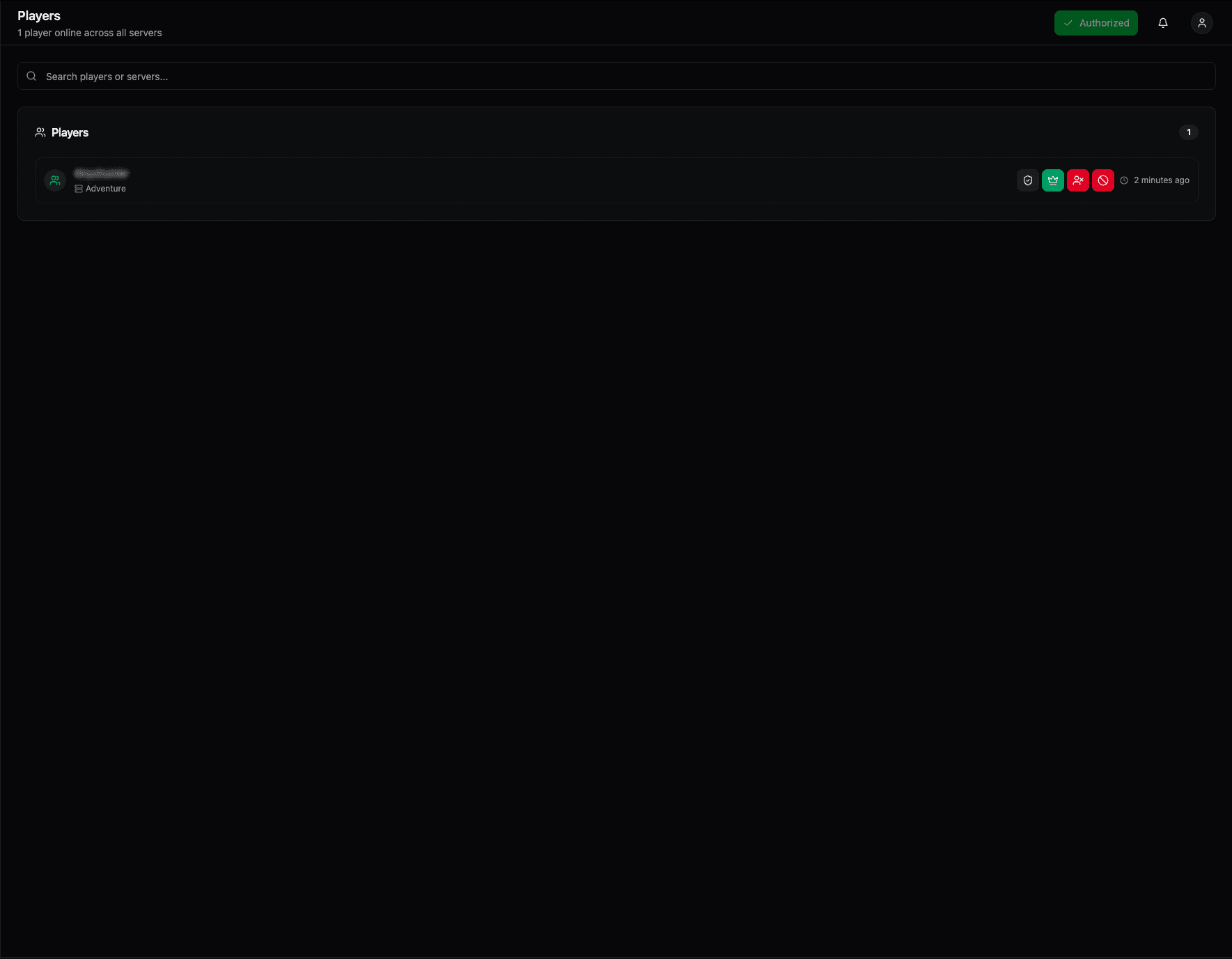
Players page interface
The Players page features:
Page header
- Title — "Players" heading
- Subtitle — Shows total player count across all servers (e.g., "1 player online across all servers")
- Search bar — Search field labeled "Search players or servers..." with magnifying glass icon
Player list
The main content area displays:
- Players heading — Section title with icon
- Player cards — List of all currently online players with their information and management options
Global player view
Unlike the Players tab within individual server details, this page shows:
- All servers — Players from every server you manage
- Unified list — All online players in one place
- Cross-server management — Manage players from any server without switching pages
This makes it easy to see overall player activity and manage your entire player base from a single location.
Player information
Each player in the list displays:
- Player name — The player's in-game username (e.g., "Onyxhunter")
- Server name — Which server the player is currently on (e.g., "Adventure")
- Last seen/Activity — When the player was last active (e.g., "2 minutes ago" with clock icon)
- Status indicators — Icons showing player status or permissions
Player actions
For each player, you have access to management actions:
- Whitelist (green shield with checkmark) — Add or remove player from whitelist
- Admin (green crown icon) — Grant or revoke admin/operator privileges
- Kick (red person with cross icon) — Disconnect the player from their server
- Ban (red stop sign icon) — Permanently ban the player
These actions work the same as in the server-specific Players tab but are accessible from the global view.
Searching players
The search bar at the top allows you to:
- Search by player name — Find specific players by their username
- Search by server — Filter players by server name
- Real-time filtering — Results update as you type
Use the search to quickly locate specific players or see which players are on particular servers.
Player status indicators
Players may show various status indicators:
- Green shield with checkmark — Player is whitelisted
- Green crown — Player has admin/operator privileges
- Activity timestamp — Shows how recently the player was active
These indicators help you quickly identify player permissions and activity levels.
Use cases
The Players page is ideal for:
- Global monitoring — See all player activity across all servers at a glance
- Cross-server management — Manage players from multiple servers without navigation
- Player search — Quickly find specific players regardless of which server they're on
- Activity overview — Understand overall player engagement across your server network
- Quick actions — Perform common player management tasks from a central location
Differences from server Players tab
While both provide player management, the Players page offers:
- Global view — See all players from all servers
- Cross-server actions — Manage players from any server
- Unified search — Search across all servers at once
- Activity overview — Understand total player activity
The server Players tab (within server details) is better for:
- Server-specific player management
- Viewing players in context of a specific server
- Server-focused player operations
Best practices
- Monitor regularly — Check the Players page to see overall player activity
- Use search — Quickly find players using the search bar
- Check activity — Monitor "last seen" timestamps to identify active players
- Cross-server management — Use this page for managing players across multiple servers
- Status awareness — Pay attention to status indicators to understand player permissions
Related features
The Players page works in conjunction with:
- Server Players tab — Server-specific player management
- Console — Execute player management commands
- Server details — Navigate to specific servers for detailed management
For server-specific player management, you can navigate to individual server details and use the Players tab there.
Console Page
Access a dedicated full-screen console view for monitoring and managing your servers. Switch between servers seamlessly to view console output and execute commands.
Backups Page
View and manage server backups from a centralized interface. Download backup files, delete old backups, and organize backups by server.