
Backups Page
View and manage server backups from a centralized interface. Download backup files, delete old backups, and organize backups by server.
The Backups page provides a centralized interface for managing all server backups across your Hytale servers. View backup files, download them to your computer, and delete old backups to free up storage space—all from a single location.
Accessing the Backups page
To open the Backups page:
- Navigate to the main Hypanel interface.
- Click "Backups" in the left sidebar navigation menu.
The Backups page opens, displaying backups organized by server.
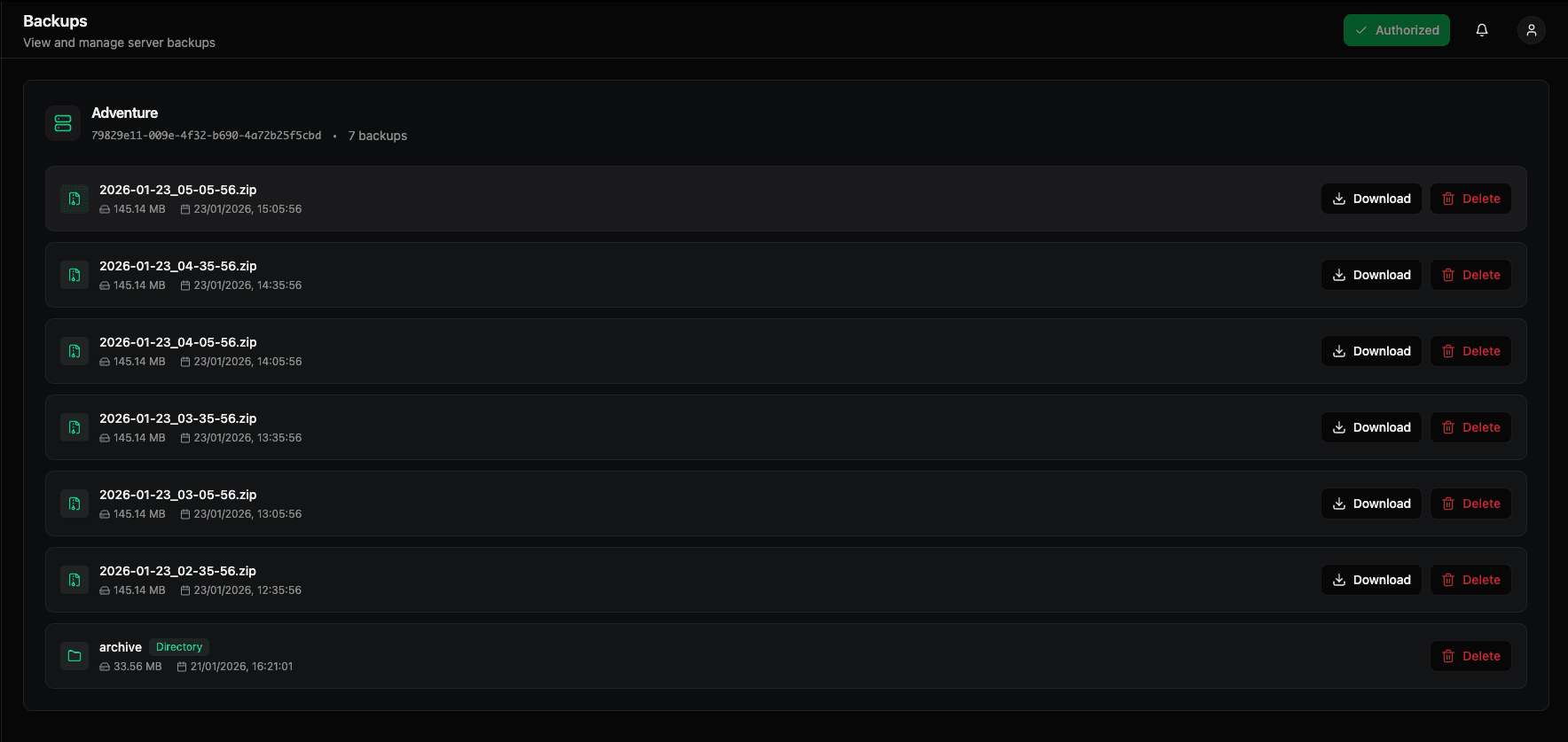
Backups page interface
The Backups page features:
Page header
- Title — "Backups" heading
- Subtitle — "View and manage server backups"
Server instance card
At the top of the backup list, a card displays:
- Server icon — Visual indicator for the server
- Server name — The name of the server (e.g., "Adventure")
- Server ID — Unique identifier for the server (e.g.,
79829e11-009e-4f32-b690-4a72b25f5cbd) - Backup count — Total number of backups for this server (e.g., "7 backups")
This card helps you identify which server's backups you're viewing.
Backup list
The main content area displays all backups for the selected server, with each backup shown in its own card.
Backup information
Each backup entry displays:
- Backup type icon — Visual indicator:
- Document/file icon — For
.zipbackup files - Folder icon — For directory backups
- Document/file icon — For
- Filename — The backup filename:
- Zip files — Format:
YYYY-MM-DD_HH-MM-SS.zip(e.g.,2026-01-23_05-05-56.zip) - Directories — Directory name (e.g.,
archive)
- Zip files — Format:
- File size — Size of the backup (e.g.,
145.14 MB,33.56 MB) - Creation date and time — When the backup was created (e.g.,
23/01/2026, 15:05:56) - Action buttons — Download and Delete buttons on the right side
Backup types
The Backups page displays two types of backups:
-
Zip file backups — Compressed backup files (
.zipformat)- Most common backup type
- Contains complete server state
- Easy to download and restore
-
Directory backups — Uncompressed directory backups
- Folder-based backups
- May be used for specific backup strategies
- Also downloadable
Managing backups
Downloading backups
To download a backup to your computer:
- Locate the backup you want to download in the list.
- Click the "Download" button (download icon) on the right side of the backup entry.
- The backup file downloads to your computer's default download location.
Downloaded backups can be:
- Stored for long-term archival
- Transferred to other locations
- Used to restore servers on different systems
- Shared with other administrators
Deleting backups
To remove a backup from the server:
- Locate the backup you want to delete.
- Click the "Delete" button (trash can icon) on the right side of the backup entry.
- Confirm the deletion if prompted.
⚠️ Warning: Deleting a backup is permanent and cannot be undone. Make sure you have downloaded the backup if you need it before deleting.
Deleting backups helps:
- Free up server storage space
- Remove old or unnecessary backups
- Keep only recent backups
- Manage storage quotas
Backup organization
Backups are organized by server, making it easy to:
- View all backups for a specific server
- Identify server each backup belongs to
- Manage backups on a per-server basis
- Track backup history for individual servers
Backup naming convention
Zip file backups follow a consistent naming pattern:
- Format:
YYYY-MM-DD_HH-MM-SS.zip - Example:
2026-01-23_05-05-56.zip - Meaning: Year-Month-Day_Hour-Minute-Second
This naming convention makes it easy to:
- Identify when backups were created
- Sort backups chronologically
- Find backups from specific dates or times
Best practices
Backup management
- Regular downloads — Download important backups regularly for off-server storage
- Delete old backups — Remove backups you no longer need to free up space
- Keep recent backups — Maintain a reasonable number of recent backups
- Archive important backups — Download and store backups before major server changes
- Monitor storage — Keep an eye on backup storage usage
Backup strategy
- Frequency — Configure automatic backups in server settings (see Create Server)
- Retention — Set appropriate "Max Backups Stored" limits
- Testing — Periodically test restoring from backups to ensure they work
- Off-site storage — Download critical backups for redundancy
- Documentation — Keep notes about which backups correspond to important server states
Use cases
The Backups page is ideal for:
- Backup review — See all available backups for a server
- Quick downloads — Download backups without accessing the server file system
- Storage management — Delete old backups to free up space
- Backup organization — View backups chronologically
- Disaster recovery — Access backups quickly when needed
Backup information
Understanding backup sizes
Backup sizes vary based on:
- Server world size — Larger worlds create larger backups
- Player data — More player data increases backup size
- Mods and plugins — Additional content increases size
- Compression — Zip files are compressed, directories are not
Backup dates and times
Backup timestamps show:
- Creation date — When the backup was created
- Creation time — Exact time of backup creation
- Chronological order — Newest backups typically appear first or last in the list
Related features
The Backups page works in conjunction with:
- Server settings — Configure automatic backup frequency and retention
- Create Server — Set up backup settings when creating servers
- Server details — Access server-specific backup management
- File system — Backups are stored on the server's file system
For configuring automatic backups, see the Create Server documentation.
Troubleshooting
Backup not appearing
- Refresh the page to update the backup list
- Check that backups are being created (verify server backup settings)
- Ensure the server is running and backups are scheduled
Download failed
- Check your internet connection
- Verify the backup file exists on the server
- Try downloading again
- Check browser download settings
Cannot delete backup
- Ensure you have proper permissions
- Verify the backup file is not locked or in use
- Try refreshing the page and deleting again
The Backups page provides a convenient way to manage all your server backups from a single, centralized interface.
Players Page
View and manage all players across all your Hytale servers from a single global interface. Search players, view their status, and perform management actions.
Settings Page
Manage global actions for all servers and the Hypanel daemon. View systemd logs to monitor system-wide operations and daemon activity.