
Console Page
Access a dedicated full-screen console view for monitoring and managing your servers. Switch between servers seamlessly to view console output and execute commands.
The Console page provides a dedicated, full-screen interface for monitoring and interacting with your Hytale server consoles. Unlike the console tab within server details, this page offers a focused view with the ability to quickly switch between different servers without leaving the console interface.
Accessing the Console page
To open the dedicated Console page:
- Navigate to the main Hypanel interface.
- Click "Console" in the left sidebar navigation menu.
The Console page opens in full-screen, providing an immersive view of your server's console output.
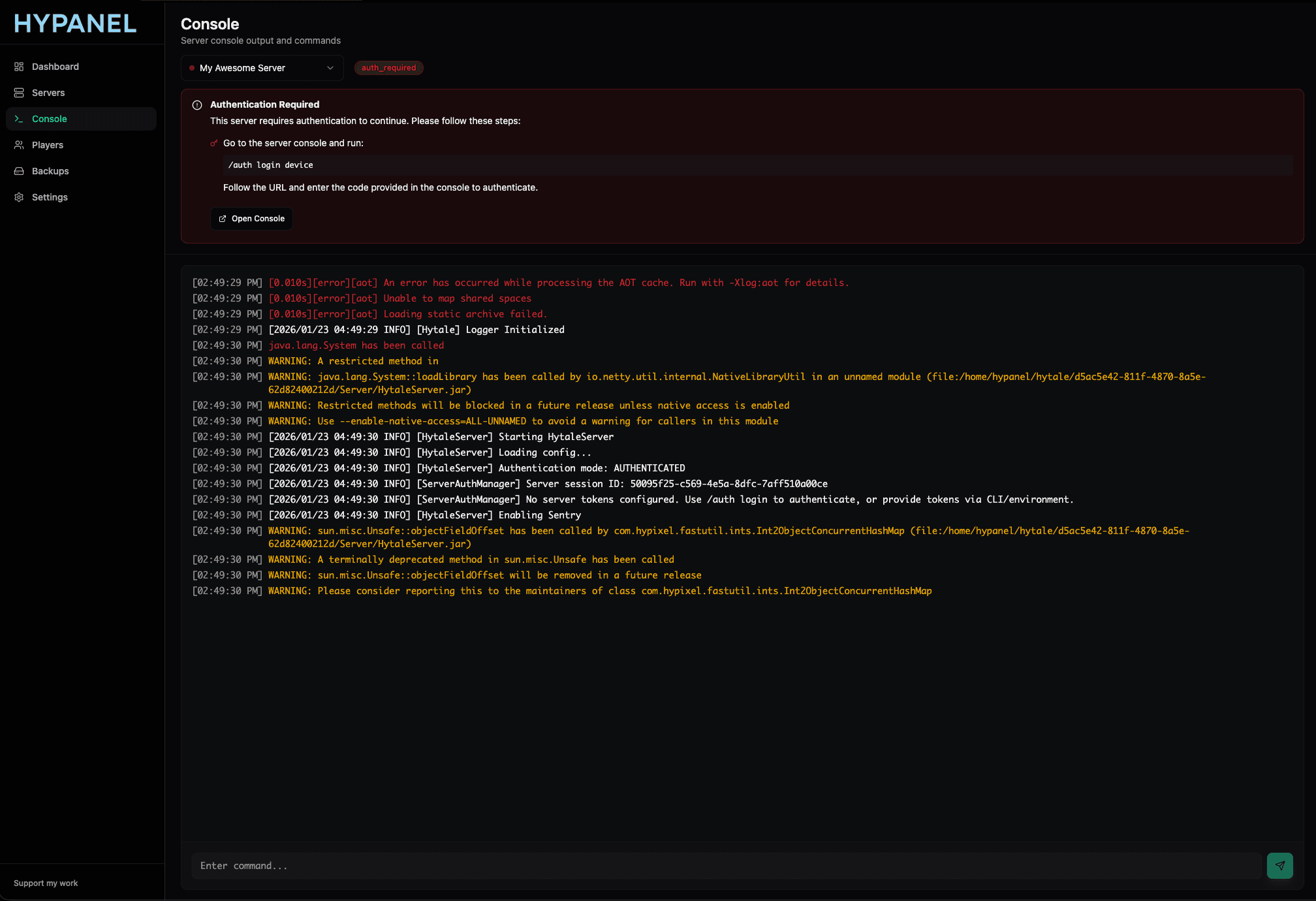
Console page interface
The Console page features:
Left sidebar navigation
The left sidebar provides access to all main Hypanel sections:
- Dashboard — Return to the main dashboard
- Servers — View all servers
- Console — Current page (highlighted)
- Players — Player management
- Backups — Backup management
- Settings — Application settings
Main console area
The main content area displays:
- Page header — "Console" title with subtitle "Server console output and commands"
- Server selector — Dropdown menu to switch between servers
- Server status indicator — Shows server status (e.g., "auth_required" badge)
- Console output — Full-screen log display
- Command input — Field to execute commands
Server switcher
One of the key features of the Console page is the server switcher dropdown at the top of the console area.
Switching between servers
- Click the server dropdown (shows current server name, e.g., "My Awesome Server").
- Select a different server from the dropdown list.
- The console automatically switches to show that server's output and allows you to execute commands for that server.
This allows you to monitor and manage multiple servers from a single interface without navigating away from the console view.
Server status indicators
The server selector shows status badges next to server names:
- auth_required — Server needs authentication (red badge)
- Online — Server is running
- Offline — Server is stopped
- Installing — Server is being installed
These indicators help you quickly identify which servers need attention.
Console output
The console output area displays:
- Real-time log entries — Server output appears immediately as events occur
- Timestamped messages — Each entry includes timestamps (e.g.,
[02:49:29 PM],[2026/01/23 04:49:29 INFO]) - Color-coded messages:
- Red — Error messages (e.g.,
[error][aot] An error has occurred) - Yellow — Warning messages (e.g.,
WARNING: A restricted method in) - White — Information messages (e.g.,
[Hytale] Logger Initialized)
- Red — Error messages (e.g.,
- Server events — Initialization, authentication attempts, warnings, and other server activity
- Auto-scroll — Console automatically scrolls to show the latest entries
The full-screen view provides maximum visibility for monitoring server activity.
Authentication prompts
If a server requires authentication, the Console page displays an Authentication Required section with:
- Information icon and heading "Authentication Required"
- Step-by-step instructions:
- Run
/auth login devicein the server console - Follow the URL and enter the code provided in the console to authenticate
- Run
- Open Console button — Quick access to launch authentication
This helps you complete server authentication directly from the console interface.
Executing commands
To execute commands on the selected server:
- Ensure the correct server is selected in the server dropdown.
- Type your command in the "Enter command..." input field at the bottom.
- Click the send button (green paper airplane icon) or press Enter.
Commands are sent to the currently selected server, and you'll see:
- Your command displayed with a
>prefix - Command execution confirmation
- Command output or results
Example commands
Common commands you can execute:
/who— List connected players/op <player>— Grant operator privileges/kick <player>— Disconnect a player/auth login device— Authenticate the server/save-all— Save all world data
Full-screen advantages
The dedicated Console page offers several advantages over the console tab:
- Larger view — More screen space for console output
- Server switching — Quickly switch between servers without leaving the console
- Focused interface — Dedicated view without other server details
- Better for monitoring — Ideal for watching multiple servers or extended monitoring sessions
- Immersive experience — Full-screen console for intensive server management
Use cases
The Console page is ideal for:
- Multi-server monitoring — Watch multiple servers simultaneously by switching between them
- Extended debugging — Focus on console output without distractions
- Server administration — Execute commands across different servers quickly
- Real-time monitoring — Keep the console open to catch issues as they occur
- Authentication management — Complete server authentication workflows
Differences from Console tab
While both provide console access, the Console page offers:
- Standalone page — Accessible from main navigation, not just server details
- Server switcher — Switch between servers without navigating away
- Full-screen focus — More space dedicated to console output
- Persistent view — Stay on console while managing multiple servers
The Console tab (within server details) is better for:
- Quick console access while viewing other server details
- Context-specific console access from server management pages
Future features
Planned enhancements for the Console page include:
- Console commands guide — Comprehensive guide to available server commands
- Search feature — Search through console history and command documentation
- Click to paste — Click commands in the guide to paste them directly into the console input
These features will make it even easier to discover and use server commands effectively.
Tips
- Keep console open — Leave the Console page open in a separate tab for continuous monitoring
- Use server switcher — Quickly check multiple servers without losing your place
- Monitor during startup — Watch the console when starting servers to catch initialization issues
- Check authentication status — Use status badges to identify servers that need authentication
- Scroll through history — Review past console output to identify patterns or issues
The Console page is your central hub for server console management across all your Hytale servers.
Mod Management
Upload, view, and delete mods for your Hytale server directly through the web interface. Supports .zip and .jar mod files.
Players Page
View and manage all players across all your Hytale servers from a single global interface. Search players, view their status, and perform management actions.