
Settings Page
Manage global actions for all servers and the Hypanel daemon. View systemd logs to monitor system-wide operations and daemon activity.
The Settings page provides system-wide management capabilities for your Hypanel installation. Control all servers at once, manage the Hypanel daemon, check for updates, and monitor system logs from a single interface.
Accessing the Settings page
To open the Settings page:
- Navigate to the main Hypanel interface.
- Click "Settings" in the left sidebar navigation menu.
The Settings page opens, displaying global actions and system logs.
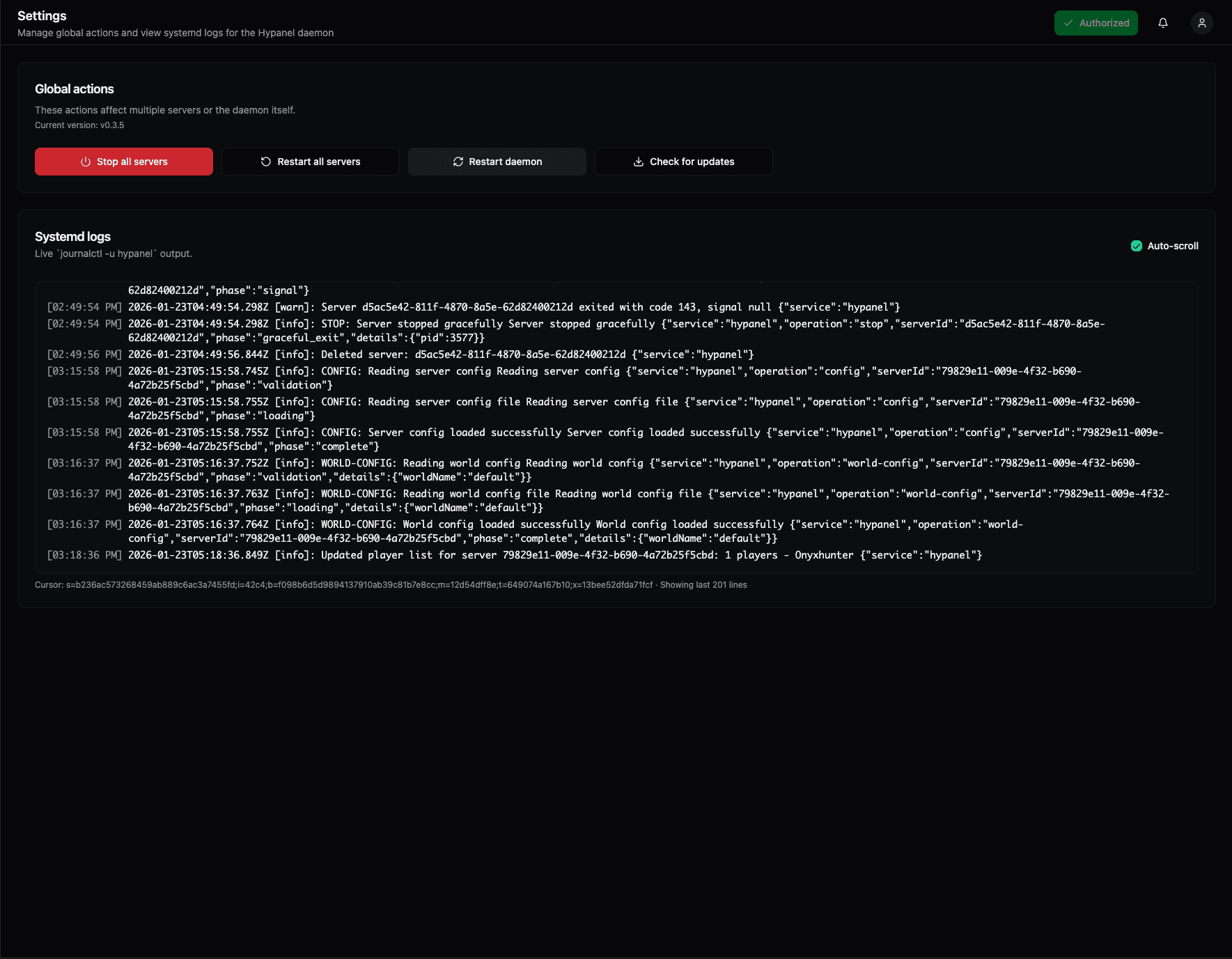
Settings page interface
The Settings page is organized into two main sections:
Page header
- Title — "Settings" heading
- Subtitle — "Manage global actions and view systemd logs for the Hypanel daemon."
Global actions
The Global actions section provides system-wide controls that affect multiple servers or the Hypanel daemon itself.

Current version
The section displays the current Hypanel version (e.g., v0.3.5), helping you track which version you're running.
Action buttons
Four action buttons provide global system management:
Stop all servers
Red button with power icon — Stops all running Hytale servers simultaneously.
- Use case: Emergency shutdown, maintenance, or system-wide server control
- Effect: All servers are gracefully stopped
- Warning: This action affects all servers at once—use with caution
Restart all servers
Dark grey button with refresh icon — Restarts all running Hytale servers.
- Use case: Apply system-wide changes, recover from issues, or refresh all servers
- Effect: All servers are stopped and then started again
- Process: Servers restart in sequence
Restart daemon
Dark grey button with refresh icon — Restarts the Hypanel daemon service.
- Use case: Apply daemon configuration changes, recover from daemon issues, or refresh the service
- Effect: The Hypanel daemon service is restarted
- Note: This may briefly interrupt web interface access during restart
Check for updates
Dark grey button with download icon — Checks for available Hypanel updates.
- Use case: Stay up-to-date with the latest Hypanel features and fixes
- Effect: Checks for new versions and displays update information if available
- Process: Connects to update servers to check for newer versions
Important notes
- Global impact: These actions affect all servers or the entire system
- Use carefully: Global actions cannot be undone
- Backup first: Consider backing up important servers before global operations
- Maintenance windows: Use global actions during planned maintenance periods
Systemd logs
The Systemd logs section provides real-time monitoring of the Hypanel daemon's system-level operations.
Log display
The log area shows live output from journalctl -u hypanel, displaying:
- Timestamps — Each entry includes timestamps (e.g.,
[02:49:54 PM] 2026-01-23T04:49:54.298Z) - Log levels — Messages are tagged with levels like
[warn],[info] - Structured data — Many entries include JSON-formatted details
Log content
The logs display various system operations:
Server operations
- Server stop events — When servers are stopped, including server IDs and exit codes
- Server deletion — When servers are removed from the system
- Graceful stops — Confirmation of successful server shutdowns
Configuration operations
- Server config loading — Reading and loading server configurations
- Validation phases
- Loading phases
- Completion confirmations
- World config loading — Reading and loading world configurations
- World name identification
- Config validation
- Success confirmations
System information
- Service identification — Logs include
"service": "hypanel"tags - Operation details — Structured information about operations
- Server IDs — Unique identifiers for servers being managed
Auto-scroll
The log display includes an Auto-scroll checkbox (green, checked by default):
- Enabled: Logs automatically scroll to show the latest entries
- Disabled: Logs remain at your current scroll position
- Use case: Disable auto-scroll to review older log entries without interruption
Log navigation
- Scroll through history — Scroll up to view older log entries
- Latest entries — Auto-scroll shows the most recent activity
- Line count — Bottom of log shows "Showing last X lines" (e.g., "Showing last 201 lines")
Use cases
The Settings page is ideal for:
- System maintenance — Stop or restart all servers for maintenance
- Update management — Check for and apply Hypanel updates
- Daemon management — Restart the Hypanel daemon when needed
- System monitoring — Watch systemd logs for system-wide operations
- Troubleshooting — Review logs to identify system-level issues
- Configuration monitoring — Watch config loading operations across servers
Best practices
Global actions
- Plan ahead — Schedule global actions during low-activity periods
- Notify users — Inform players before stopping or restarting all servers
- Backup first — Create backups before major global operations
- Test updates — Test updates on a development server first
- Monitor logs — Watch systemd logs during global operations
Systemd logs
- Regular monitoring — Check logs periodically for issues
- Use auto-scroll — Keep auto-scroll enabled for real-time monitoring
- Review history — Scroll through logs to identify patterns
- Watch for errors — Monitor for warning and error messages
- Document issues — Note important log entries for troubleshooting
Troubleshooting
Global actions not working
- Check that you have proper permissions
- Verify the Hypanel daemon is running
- Review systemd logs for error messages
- Ensure servers are in a state that allows the action
Logs not updating
- Enable auto-scroll if disabled
- Refresh the page
- Check that the Hypanel daemon is running
- Verify systemd service status
Update check failed
- Check your internet connection
- Verify update servers are accessible
- Review systemd logs for connection errors
- Try checking again later
Related features
The Settings page works in conjunction with:
- Server management — Individual server controls complement global actions
- Console — Server-specific console logs
- System monitoring — Monitor individual server performance
- Backups — Create backups before global operations
For server-specific management, use the individual server detail pages and console interfaces.
Security considerations
- Global actions — Require appropriate permissions
- Daemon restart — May briefly interrupt service
- Log access — Systemd logs may contain sensitive information
- Update verification — Ensure updates come from trusted sources
The Settings page provides powerful system-wide management capabilities while maintaining visibility into Hypanel's operations through comprehensive systemd log monitoring.