
Authorize a Server
Authorize your Hytale server on first start. Required for the server to accept player connections and operate properly.
When you start a Hytale server for the first time, it requires authentication with your Hytale account. This is a one-time setup that links your server to your Hytale account and enables it to accept player connections.
Auth Required status
After starting your server for the first time, you'll see an Auth Required status on the server dashboard. The server will show:
- A red Auth Required badge at the top right
- A green Installed badge indicating the server files are ready
- A large red Authenticate button at the bottom of the server card
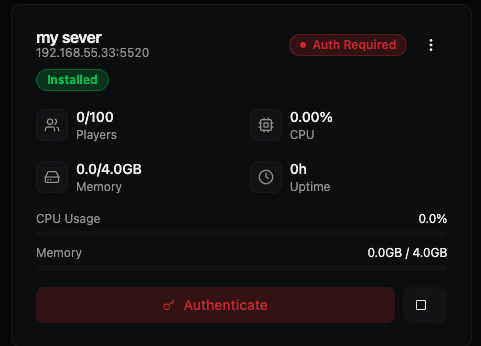
The server cannot accept player connections until authorization is complete.
Authorize the server
Step 1: Click Authenticate
Click the red Authenticate button on the server dashboard. This opens the server console page where you'll complete the authorization process.
Step 2: Run the authentication command
Navigate to the Console tab (or it may open automatically). You'll see an "Authentication Required" notice with instructions.
In the console command input at the bottom, run:
/auth login device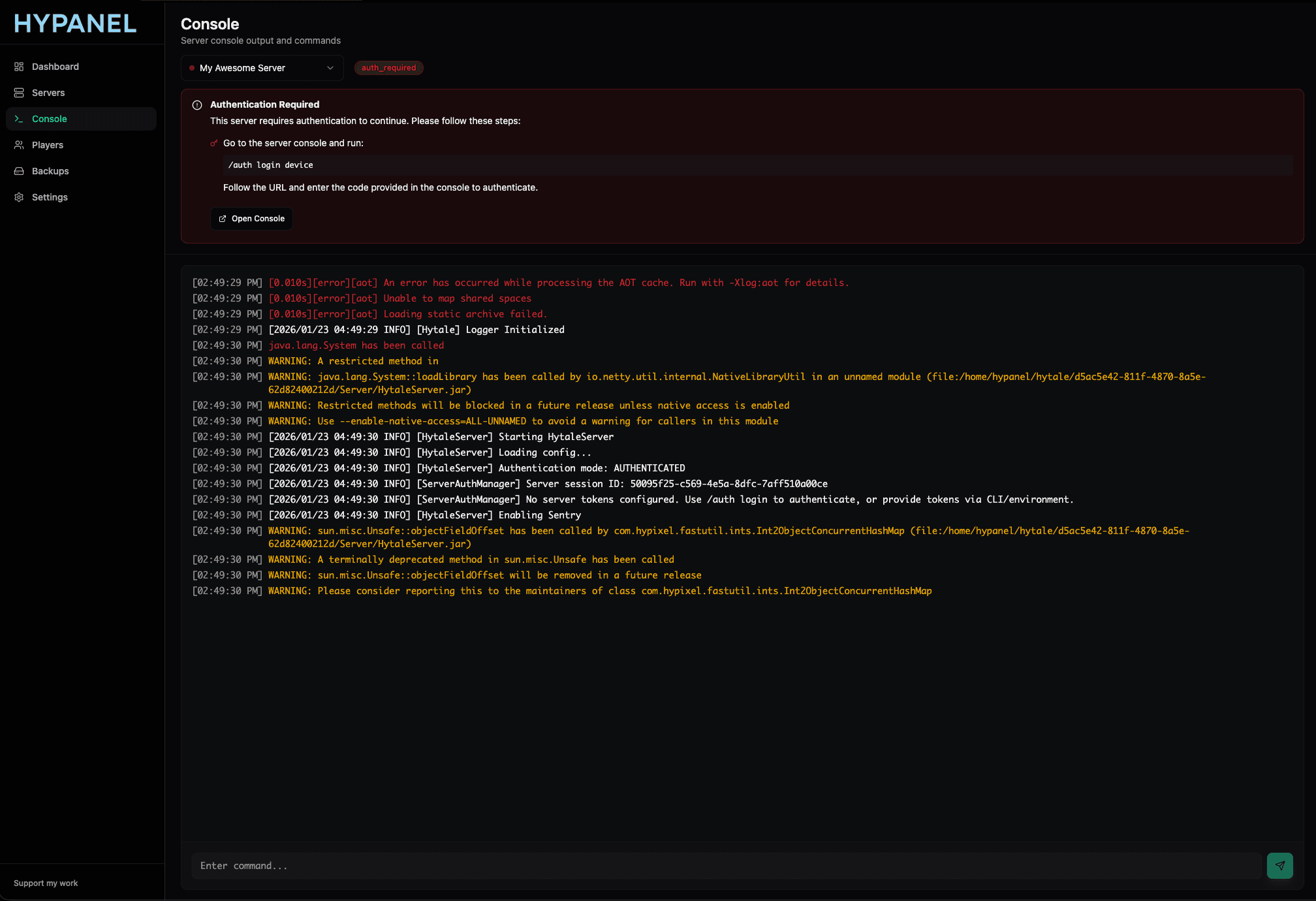
The console will display the command execution and provide an authorization link.
Step 3: Copy the authorization link
After running the command, the console will output an authorization link. It will look like:
Or visit: https://oauth.accounts.hytale.com/oauth2/device/verify?user_code=XXXXXCopy this entire URL from the console output.

Step 4: Complete authorization in browser
- Open the authorization link in a new browser tab (paste the URL you copied).
- Sign in with your Hytale account credentials.
- Approve the authorization request on the Hytale website.
This links your server to your Hytale account and grants it permission to operate.
Step 5: Enable encrypted credential persistence
Return to the Hypanel console and run:
/auth persistence EncryptedThis command saves your authentication credentials in encrypted storage, so you won't need to re-authenticate after server restarts.

You should see confirmation messages in the console:
Console executed command: auth persistence EncryptedSwapped credential store to: EncryptedAuthCredentialStoreProviderCredential storage changed to: Encrypted
Server ready
Once you've completed these steps, your server is authorized and ready to accept connections. The Auth Required status will be removed, and players can connect to your server.
Notes
- First start only: This authorization process is only required the first time you start a server. After that, the encrypted credentials persist across restarts.
- Auth Persistence: If you dont run the auth persistence command, you will need to re-authenticate every time you start the server.
- One account per server: Each server is linked to one Hytale account. Make sure you use the account you want associated with that server.
- Security: The encrypted credential storage ensures your authentication tokens are securely saved and don't need to be re-entered.
Create and Install a Server
Create a new Hytale server from the dashboard, configure it, and install it. Covers the New Server flow and Create New Server form.
Server Overview
Access and navigate the server details page to view statistics, manage server actions, and configure autostart. Learn how to use the server overview interface.