
Server Overview
Access and navigate the server details page to view statistics, manage server actions, and configure autostart. Learn how to use the server overview interface.
The Server Overview page provides a comprehensive view of your Hytale server's status, performance metrics, and management controls. This page is your central hub for monitoring and controlling individual servers.
Accessing server details
To view a server's details page:
- Navigate to your servers on the Hypanel dashboard.
- Locate the server you want to view.
- Click the three-dot menu (⋮) in the top-right corner of the server card.
- Select "View Details" from the dropdown menu.
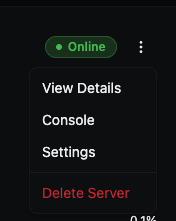
The dropdown menu also provides quick access to:
- Console — Open the server console directly
- Settings — Configure server-specific settings
- Delete Server — Remove the server (destructive action)
After selecting "View Details", the Server Overview page opens, showing detailed information and controls for that server.
Server overview page
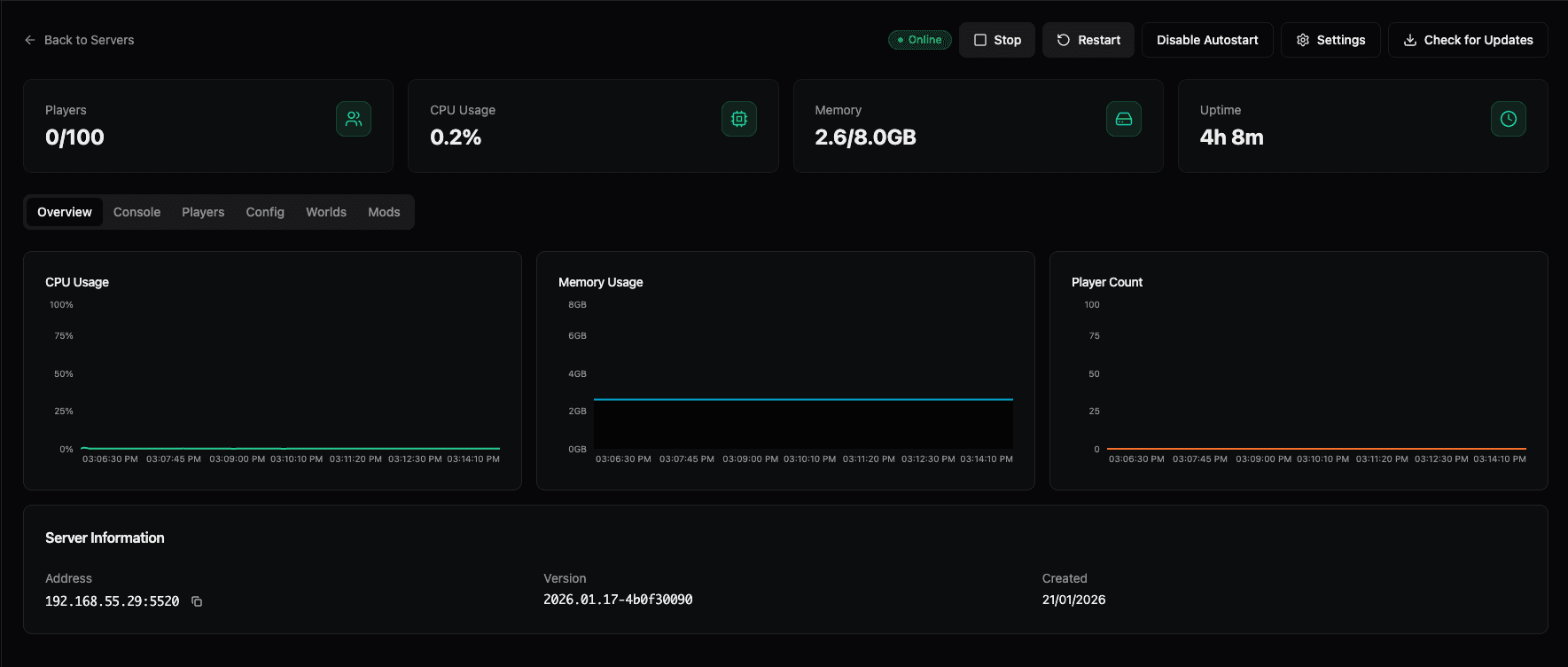
The Server Overview page displays real-time statistics, performance graphs, and management controls for your server.
Quick stats banner
At the top of the page, four key metrics are displayed in cards:
- Players — Current connected players out of maximum capacity (e.g.,
0/100 Players) - CPU Usage — Current CPU utilization percentage (e.g.,
0.2%) - Memory — Memory usage out of allocated amount (e.g.,
2.6/8.0GB) - Uptime — How long the server has been running (e.g.,
4h 8m)
These stats update in real-time to give you an immediate view of your server's current state.
Performance graphs
Below the quick stats, the Overview tab shows historical performance data in three graphs:
- CPU Usage — Line graph showing CPU utilization over time
- Memory Usage — Line graph showing memory consumption over time
- Player Count — Line graph showing player connections over time
These graphs help you identify patterns, troubleshoot performance issues, and understand server resource usage trends.
Server information
At the bottom of the page, you'll find static server information:
- Address — The server's IP address and port (e.g.,
192.168.55.29:5520) with a copy button - Version — The installed Hytale server version (e.g.,
2026.01.17-4b0f30090) - Created — The date the server was created (e.g.,
21/01/2026)
Server actions
In the top-right corner of the Server Overview page, you'll find several server management actions:

Stop
Stops the running server. The server will go offline and players will be disconnected. You can start it again using the Start button.
Restart
Restarts the server. This stops the server and then starts it again automatically. Useful for applying configuration changes or recovering from issues.
Disable Autostart / Enable Autostart
Controls whether the server automatically starts when the host operating system boots.
- Disable Autostart — Prevents the server from starting automatically on system boot. You'll need to manually start it each time.
- Enable Autostart — Allows the server to start automatically when the host OS boots, ensuring your server is always available after a system restart.
This is particularly useful for production servers that should remain available even after system reboots or power outages.
Settings
Opens the server settings page where you can configure:
- Server name and port
- Memory allocation
- Backup settings
- Mod management
- And other server-specific configurations
Check for Updates
Checks for available Hytale server updates and allows you to update the server to the latest version. When updates are available, you can install them directly from this interface.
Keeping your server updated ensures you have the latest features, bug fixes, and security patches from Hytale.
Navigation tabs
The Server Overview page includes several tabs for different aspects of server management:
- Overview — Current page showing stats and graphs
- Console — Server console output and command input
- Players — Player management (view, kick, op, whitelist, banlist)
- Config — Server configuration files
- Worlds — World management
- Mods — Mod file management
Use these tabs to navigate between different management areas for your server.
Back to servers
Click the ← Back to Servers link in the top-left corner to return to the main servers dashboard and view all your servers.