
Server Configuration
Configure your Hytale server settings through the web interface. Manage basic settings, game settings, world configuration, storage options, and advanced settings.
The Config tab provides a comprehensive interface for configuring your Hytale server. All server settings can be managed directly from the web interface without needing to edit configuration files manually.
Accessing server configuration
To configure your server:
- Navigate to your server's details page (click the three-dot menu on a server card and select "View Details").
- Click the "Config" tab in the navigation tabs.
The Config tab displays all configurable server settings organized into logical sections.
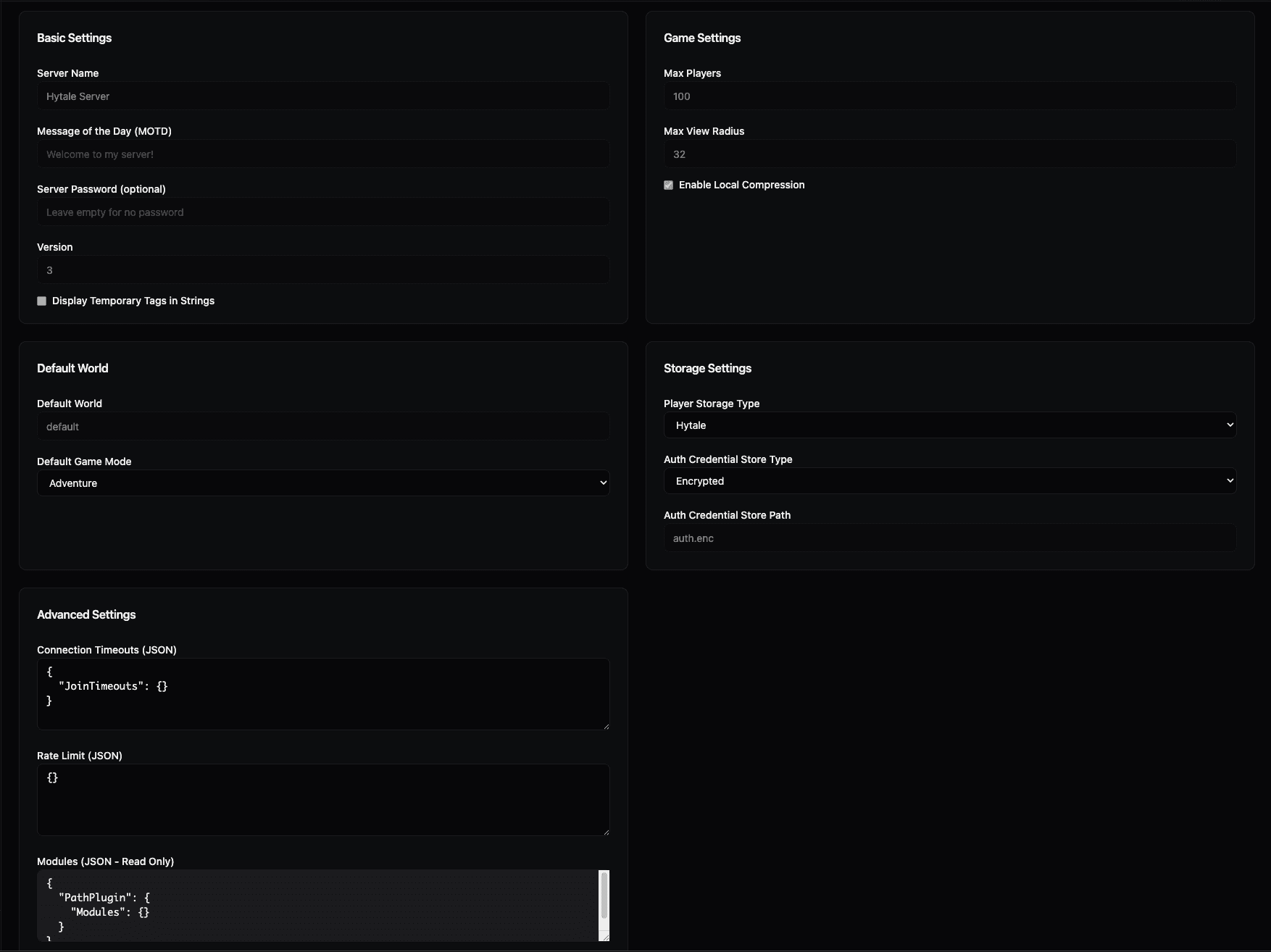
Configuration sections
The Config tab is organized into five main sections:
Basic Settings
Essential server identification and messaging options:
- Server Name — The name of your server as it appears to players (e.g.,
Hytale Server) - Message of the Day (MOTD) — A welcome message displayed to players when they connect (e.g.,
Welcome to my server!) - Server Password (optional) — An optional password required for players to join. Leave empty for no password protection
- Version — The server version number (e.g.,
3) - Display Temporary Tags in Strings — Checkbox to control whether temporary tags are displayed in text strings
These settings control how your server appears to players and basic access requirements.
Default World
Configuration for the default world that loads when the server starts:
- Default World — The name of the world that loads by default (e.g.,
default) - Default Game Mode — The default game mode for players (dropdown menu, e.g.,
Adventure)
These settings determine which world players enter and what game mode they start with.
Game Settings
Player capacity and performance options:
- Max Players — Maximum number of players allowed on the server simultaneously (e.g.,
100) - Max View Radius — Maximum render or view distance in game units (e.g.,
32) - Enable Local Compression — Checkbox to enable local data compression on the server (checked by default)
These settings affect server performance and player experience. Adjust max players based on your server's resources, and view radius based on performance needs.
Storage Settings
Configuration for how player data and authentication credentials are stored:
- Player Storage Type — Method used for storing player data (dropdown menu, e.g.,
Hytale) - Auth Credential Store Type — How authentication credentials are stored (dropdown menu, e.g.,
Encrypted) - Auth Credential Store Path — File path where encrypted authentication credentials are saved (e.g.,
auth.enc)
These settings control data persistence and security. The encrypted credential store ensures your server authentication tokens are securely saved.
Advanced Settings
Advanced configuration options for power users:
- Connection Timeouts (JSON) — JSON object for configuring connection timeout settings (e.g.,
{"JoinTimeouts": {}}) - Rate Limit (JSON) — JSON object for advanced rate limiting configurations (e.g.,
{}) - Modules (JSON - Read Only) — Displays configured modules in JSON format. This section is read-only and shows the current module configuration (e.g.,
{"PathPlugin": {"Modules": {}}})
These advanced settings require JSON format and are intended for users familiar with server configuration. The Modules section is read-only and displays the current module state.
Editing configuration
Making changes
- Navigate to the Config tab on your server's details page
- Locate the setting you want to change
- Edit the value in the input field, dropdown, or checkbox
- Save your changes — Changes are typically saved automatically or via a Save button
Configuration types
- Text inputs — Type directly into fields like Server Name, MOTD, or Server Password
- Dropdown menus — Select from available options (indicated by a downward chevron icon)
- Checkboxes — Toggle options on or off
- JSON text areas — Edit JSON objects directly in the text areas for advanced settings
Best practices
- Test changes — After making significant changes, test your server to ensure it starts correctly
- Backup first — Create a server backup before making major configuration changes
- Understand JSON — Only edit advanced JSON settings if you understand the format and structure
- Document changes — Keep notes of configuration changes for troubleshooting
- Restart server — Some settings may require a server restart to take effect
Configuration categories
Essential settings
Start with these for basic server operation:
- Server Name
- Max Players
- Default World
- Default Game Mode
Security settings
Protect your server:
- Server Password (optional)
- Auth Credential Store Type (Encrypted recommended)
- Rate Limit (advanced)
Performance settings
Optimize server performance:
- Max View Radius
- Enable Local Compression
- Connection Timeouts (advanced)
Customization settings
Personalize your server:
- Message of the Day (MOTD)
- Server Name
- Display Temporary Tags in Strings
Important notes
- Read-only sections — Some sections like "Modules" are read-only and display current configuration
- JSON format — Advanced settings require valid JSON syntax. Invalid JSON may prevent the server from starting
- Server restart — Some configuration changes require a server restart to take effect
- Backup recommended — Always backup your server before making significant configuration changes
- Default values — Many settings have sensible defaults that work for most servers
Related features
The Config tab works in conjunction with:
- Server Settings — Global server settings accessible from the server actions menu
- Console — Some configuration can also be managed via console commands
- Backups — Configuration is included in server backups for easy restoration
For more information about specific settings, refer to the Hytale server documentation or consult the server console for detailed error messages.
Player Management
View and manage players on your Hytale server. See who's online, manage permissions, and perform player actions like kick, ban, whitelist, and admin.
World Configuration
Configure world settings for your Hytale server. Manage world identity, generation, chunk configuration, gameplay settings, client effects, time & weather, death mechanics, and entity spawning.