
Create and Install a Server
Create a new Hytale server from the dashboard, configure it, and install it. Covers the New Server flow and Create New Server form.
From the Hypanel dashboard, you can create a new Hytale server and install it in a few steps. Ensure the Hytale downloader is authorized before creating servers, since Hypanel uses it to fetch and install Hytale server files.
Create a new server
-
Open the dashboard and locate the + New Server button (top-right area, next to the grid/list view toggle for your servers).

-
Click + New Server. The Create New Server modal opens.
Configure your server
In the Create New Server modal, set the following options, then click Create Server. This creates the server and adds it to your dashboard; the actual Hytale server files are installed in the next step.
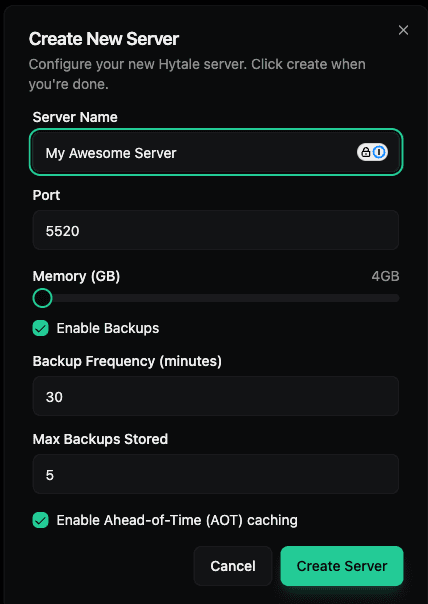
Server Name
Give your server a name (e.g. My Awesome Server). This is used in the Hypanel UI to identify the server.
Port
The port the Hytale server will listen on. Default is 5520. Ensure this port is free and, if applicable, allowed through your firewall.
Memory (GB)
Amount of RAM allocated to the server, in gigabytes. Use the slider to choose a value up to the maximum shown (e.g. 4 GB). Allocate enough for your expected player count and mods.
Enable Backups
When checked, Hypanel will automatically back up this server. You can then set:
- Backup Frequency (minutes) — How often backups run (e.g. 30 minutes).
- Max Backups Stored — How many backups to keep (e.g. 5). Older backups are removed when this limit is reached.
Enable Ahead-of-Time (AOT) caching
When enabled, the server uses Ahead-of-Time caching. This can improve startup and runtime performance. Leave it on unless you have a specific reason to disable it.
Install the server after it's created
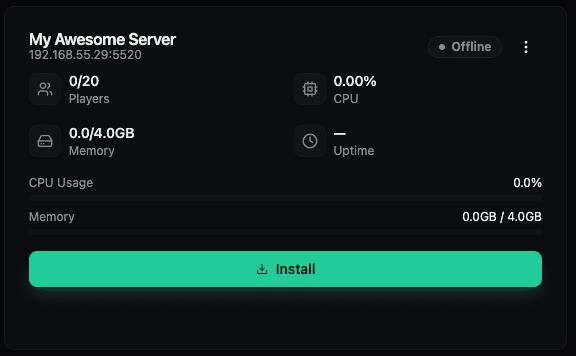
- Review all settings in the form and click Create Server. The server is created and appears on your dashboard. It will show as Offline with 0 players, memory, CPU, and uptime.
- Open the new server’s card and click the green Install button at the bottom. This starts the download and installation of the Hytale server files via the authorized downloader.
Server in installing state
While the server is installing, the UI shows:
- A blue Installing badge.
- Offline status.
- Installing... at the bottom (replacing the Install button).
- Resource metrics (players, memory, CPU, uptime) at zero or pending.
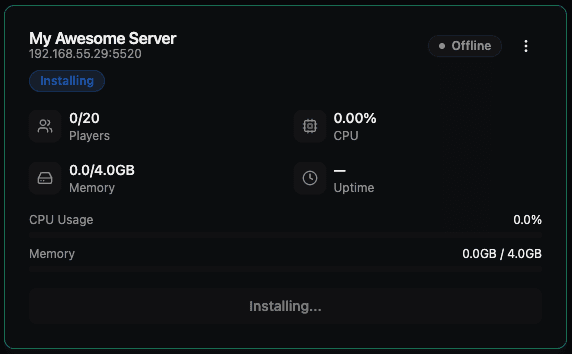
Installation can take several minutes while Hypanel downloads the Hytale server files (often around 1.4 GB). When it finishes, the Installing badge and Installing... state are replaced by normal server controls, and you can start the server.
View installation progress in System logs
To watch the install progress on your system, open the System tab and view the Systemd logs. These show live journalctl -u hypanel output, including the Hytale downloader activity.
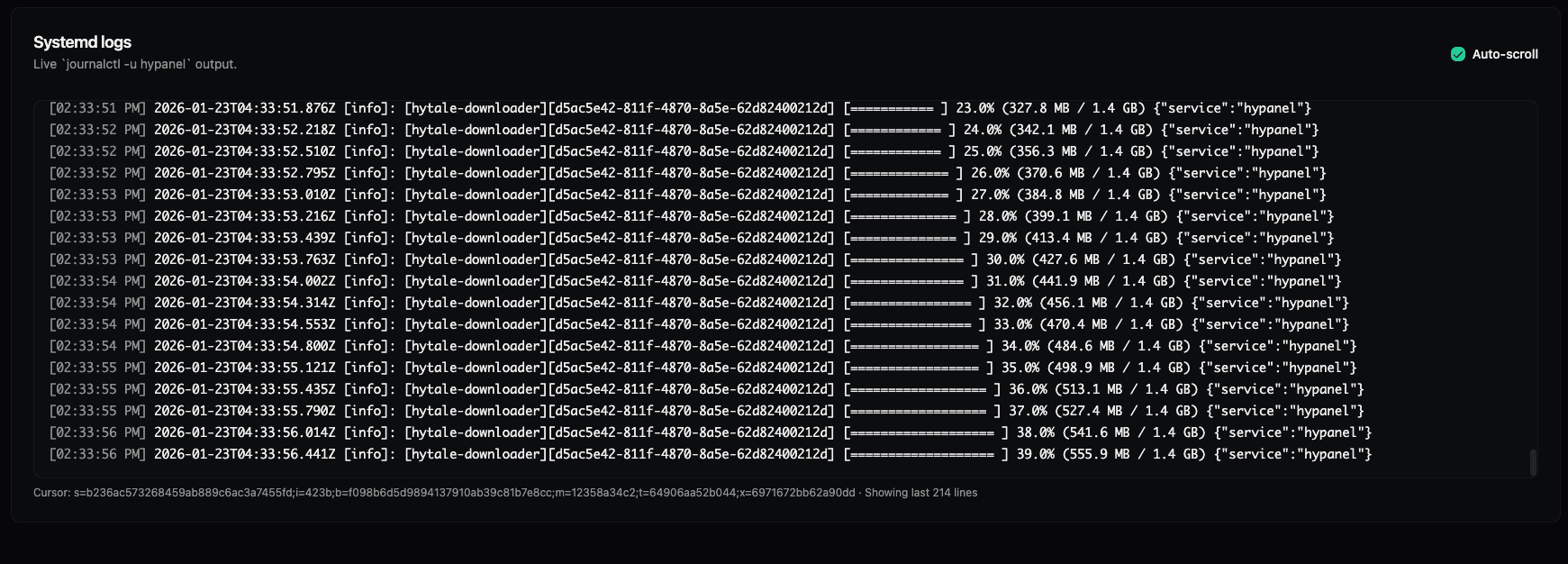
The logs display:
- Auto-scroll — Keep this checked to follow the latest entries.
- hytale-downloader progress — A progress bar, percentage (e.g. 23% → 39%), and downloaded size vs total (e.g. 327.8 MB / 1.4 GB).
Use this view to confirm the server is downloading and installing correctly.
Next steps
After the server is created and installed:
- Start the server from the dashboard.
- Authorize the server.
- Adjust player management, mods, and other options in the server’s settings.
- Use the console and monitoring tools to operate and debug the server.