
Hytale Downloader
Authorize the Hytale downloader tool to install and update Hytale servers. Required by Hypixel for official server downloads.
To download Hytale servers through Hypanel, you must authorize the Hytale downloader tool that is included with the app. This is an official requirement from Hypixel and ensures that server downloads are performed through their sanctioned tooling.
Authorize the downloader
-
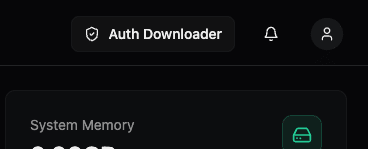
Click the Auth Downloader button at the top of the Hypanel page (in the header, next to the notification and profile icons).
-
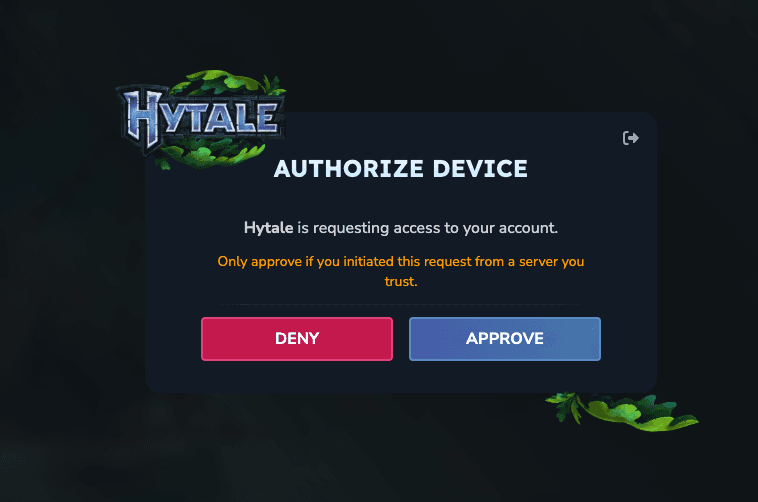
A window will pop open in a new tab with the Hytale official site. Complete the authorization there: choose APPROVE to grant access (or DENY to cancel). Only approve if you initiated this request from a server you trust.
-
Return to Hypanel. Once authorized, the header will show Authorized status instead of the button.
After authorization
After clicking authorize and completing the process, you should see:

The green Authorized badge confirms that the Hytale downloader is ready. You can now create, install, and update Hytale servers from within Hypanel.
Why is this required?
Hypixel requires use of their official Hytale downloader for distributing server files. Authorizing it once inside Hypanel allows the app to fetch and manage Hytale server installations on your behalf while staying compliant with Hypixel’s terms.
Fallback
If the Hytale authorization window doesn’t automatically open or is blocked by your browser (for example, by a pop-up blocker), use the fallback modal that appears when you click Auth Downloader.
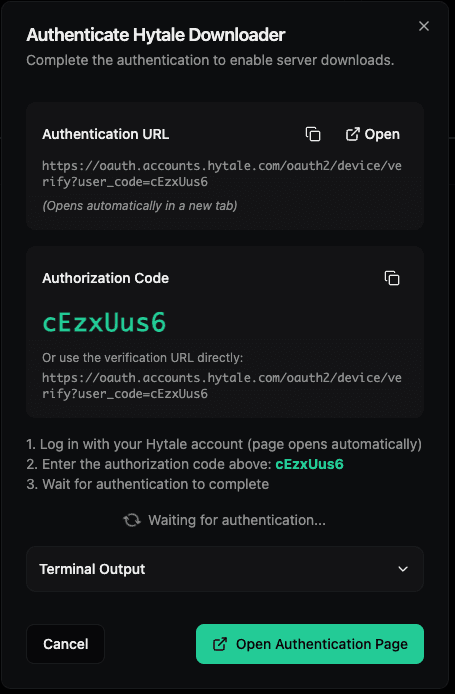
From the fallback modal you can:
- Copy or open the Authentication URL — manually open the Hytale authorization page in a new tab
- Copy the Authorization Code — enter it on the Hytale site if prompted
- Open Authentication Page — use the green button to launch the Hytale page directly
Follow the steps shown in the modal (log in with your Hytale account, enter the code if needed, then wait for authentication to complete). Once done, Hypanel will update and show Authorized in the header.